Somach Hardware Guide
Complete hardware assembly. Every wire explained.
Components Required
Prices from Amazon.in (March 2026). Total: ₹3,196 (~$38)
- 1× ESP32 NodeMCU-32S — microcontroller with WiFi & Bluetooth · ₹549 on Amazon.in ↗
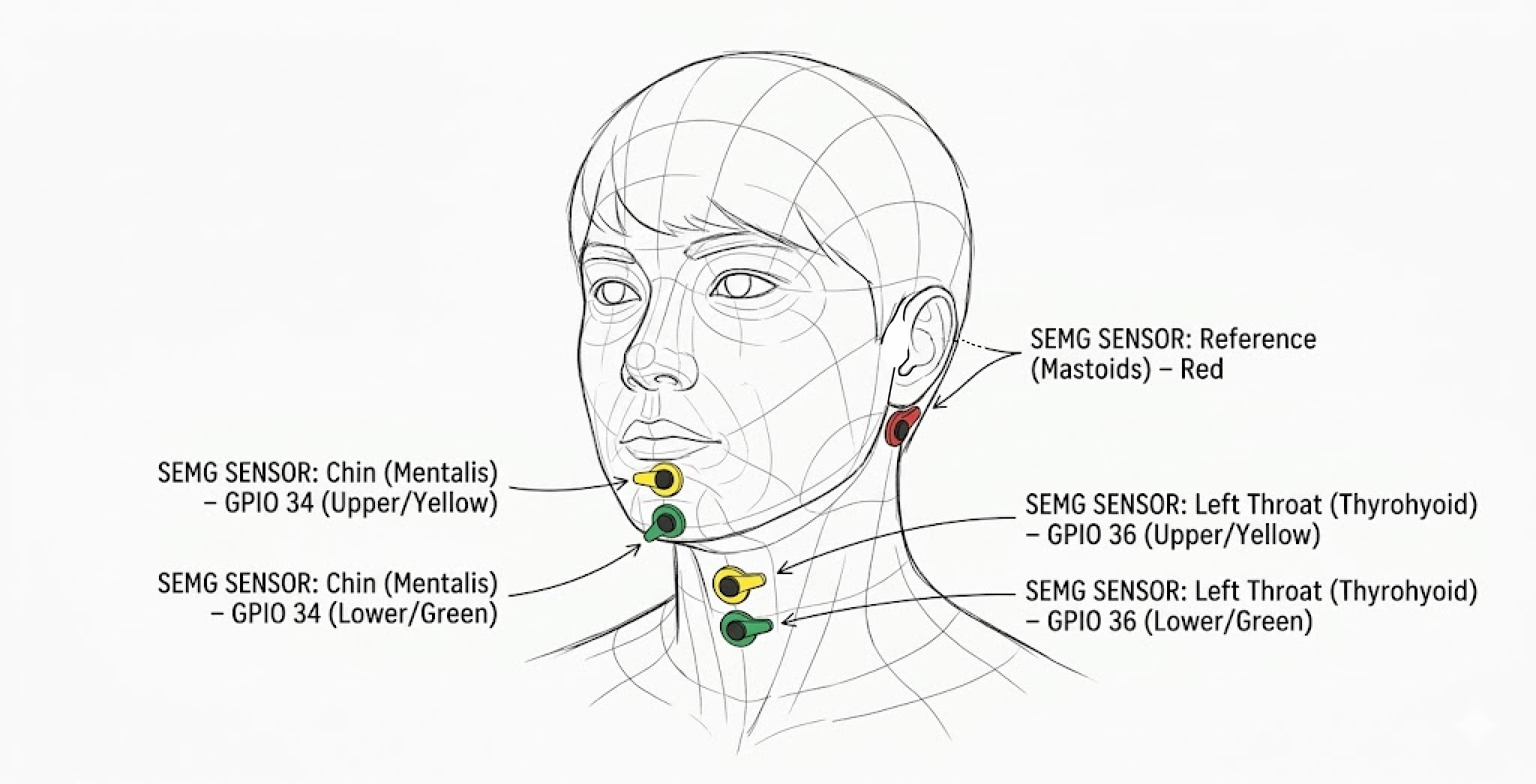
- 2× AD8232 ECG sensor module — analog front-end for sEMG · ₹790 each on Amazon.in ↗
- 1× 840-point breadboard + 40+40+40 jumper wires — for ESP32 + AD8232s · ₹279 on Amazon.in ↗
- 1× 400-tie mini breadboard — optional compact build · ₹67 on Amazon.in ↗
- 100× Medico ECG electrodes (pediatric) — sticky foam pads, solid gel · ₹523/100pcs on Amazon.in ↗
- 1× USB-A to Type-C cable — nylon braided, for ESP32 · ₹99 on Amazon.in ↗
- 1× USB-A to Type-C OTG adaptor — for laptop without USB-A · ₹99 on Amazon.in ↗
Your breadboards have specific layouts. Let's confirm the orientation.
Short Breadboard (for ESP32)
Looking down at it with rows numbered on the left:
Long Breadboard (for AD8232s)
Note: Your long board has reversed columns (J to A, not A to J).
- Short board: columns go A → J (left to right)
- Long board: columns go J → A (reversed)
- Both have + and - rails on sides
Software Setup Guide
From zero to reading muscle signals. Step by step.
What You Need
- Completed Hardware — from the Hardware Build Guide
- Computer — Mac, Windows, or Linux
- USB Cable — to connect ESP32
- Internet — for downloads
- ~30 minutes — for full setup
Before we start, let's understand what we're doing and make sure you're ready.
How The System Works
- You MUST upload Arduino code BEFORE Python can read anything
- Arduino code = the "engine" that generates data
- Python = the "dashboard" that reads what Arduino sends
- Hardware build is complete (all wires connected)
- ESP32 is plugged into your computer via USB
- You see some LED light up on the ESP32
ML Introduction: The Concepts
Understand the theory before you dive in.
📖 This is Theory Only
This guide explains what we're doing and why. It doesn't include hands-on exercises.
Ready to start training? → Go to the ML Walkthrough (Hands-On Lab) →
We are not reading thoughts. We are reading the body's shadow of thoughts.
The "Silent" Problem
When you speak silently, the muscle signals are tiny. Barely visible above the noise.
The Solution: Curriculum Learning
We don't jump straight to silent speech. We train in steps:
Machine learning needs examples. Hundreds of them.
We use the ESP32 to capture muscle voltage at 250 times per second. This creates a time-series CSV file for every word you speak.
Human speech muscles move fast. If we measure too slowly, we miss the subtle twitches that distinguish "P" from "B".
Raw signals are full of static (from lights, wifi, movement). We need to filter them.
This is the magic step. Neural networks don't understand "waves". They understand patterns.
Sound to Image
We convert the audio wave into a heatmap (Spectrogram). This lets the AI "see" the word like a picture.
The AI looks at this heatmap and says: "Oh, a bright spot in the bottom-left corner? That usually means 'ONE'."
We show the AI thousands of these heatmaps, labeled "ONE", "TWO", etc.
How it Learns
It starts by guessing randomly. If it guesses "TWO" when the label is "ONE", we tell it to adjust its internal math slightly. Over thousands of repetitions (Epochs), it gets accurate.
(Heatmap)
(Pattern Matcher)
("ONE")
Why do we record "Overt" (loud) speech if we want "Silent" speech?
Because loudness doesn't change the shape of the word much. We train the heavy lifting on the loud (easy) data, then fine-tune it on the silent (hard) data.
It's like learning to drive a truck. Once you know how to drive a truck (Loud), learning to drive a car (Silent) is easy. You transfer the knowledge.
How do we know if the model is good? We use a Confusion Matrix.
| Pred: A | Pred: B | |
| Actual: A | Correct | Error |
| Actual: B | Error | Correct |
It tells you exactly what mistakes are happening. If the model thinks "FIVE" is "NINE", you know you need to pronounce those two more distinctly.
ML Walkthrough: Hands-On Lab
Let's train a model to recognize your silent speech. We start small, then grow.
The "Start Small" Philosophy
Machine learning is overwhelming if you try to do everything at once. We will use a Curriculum Learning approach:
Phase 1: Just one word ("ONE"). Validation.
Phase 2: Three words ("ONE", "TWO", "THREE"). Classification.
Phase 3: All digits (0-9). Scaling up.
We focus on Mouthing (silent lip movement) first. It provides the best balance of signal strength and silence.
Ensure your system is ready.
Requirements
| What | Status |
|---|---|
| Hardware | Built & Connected via USB |
| Arduino IDE | Installed & Opens |
| Python 3 | Installed (python3 --version) |
- ESP32 is connected via USB
- You know your Serial Port (e.g. COM3 or /dev/cu.SLAB...)